Luminary Performance Settings
Graphics options, VRAM headroom, F8 HUD toggle, and Steam Deck presets for stable Early Access sessions.
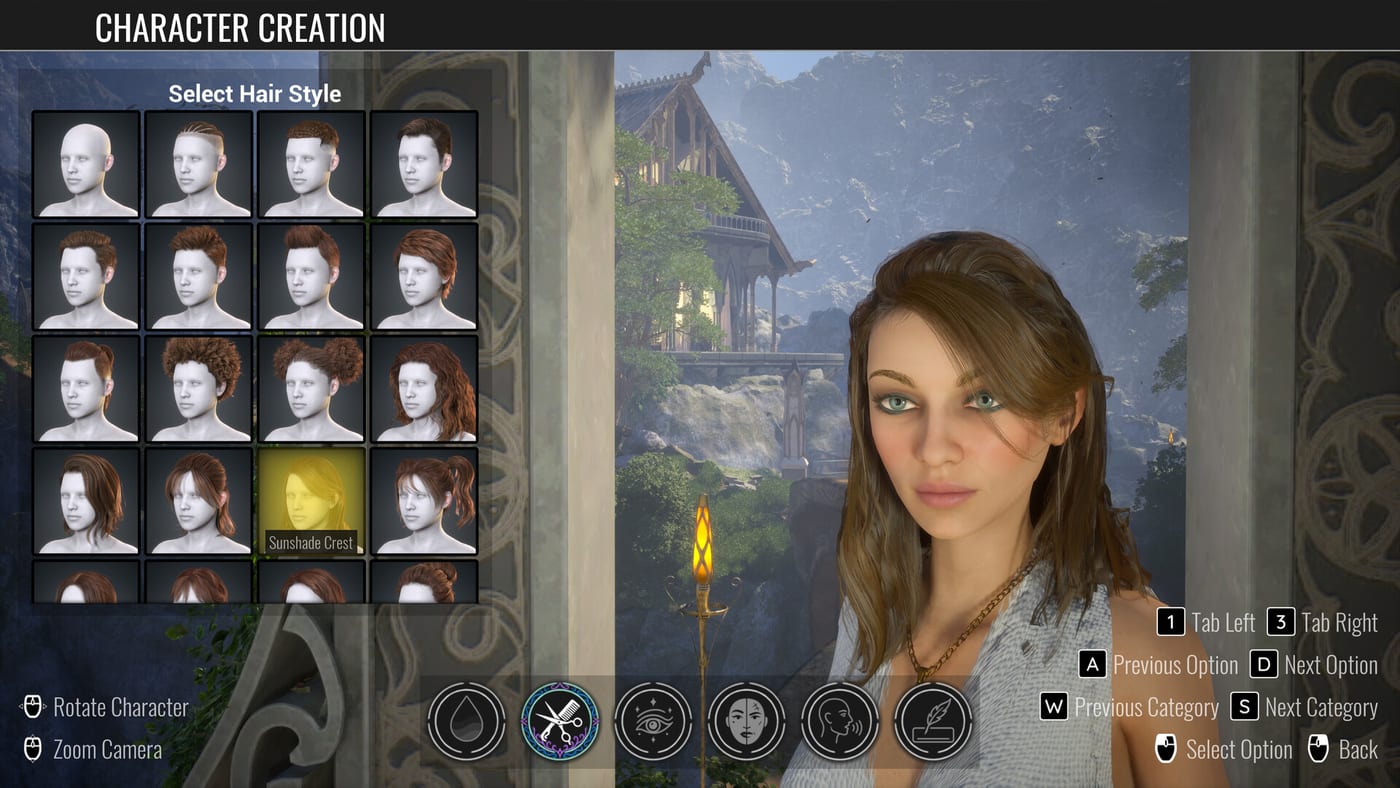
Luminary ships Steam Early Access on August 11, 2026 as an Unreal Engine 5 OpenZone ARPG-lite with wind-reactive foliage, real-time weapon swap combat, and three-player online co-op that adds particle density when elites cluster. Stable framerate matters as much as gear upgrades — dodge windows taught in Combat Basics punish stutter more than a missing potion. This page documents in-game graphics settings, the F8 HUD toggle from demo patch 0.10.32.0071, VRAM troubleshooting on minimum-spec GPUs, and Steam Deck presets so solo exploration and co-op hosting feel consistent.
Cross-read System Requirements for official minimum and recommended PC tiers before tuning sliders. Use Launch Checklist to verify drivers and demo replay before launch week sessions.
Where to adjust graphics
Open Settings → Graphics from the main menu or pause screen. Early Access builds expose quality presets plus individual toggles for display mode, effects, foliage, and post-processing. Changes apply on confirmation; some options require a brief shader reload when switching between windowed and exclusive fullscreen.
If settings reset after patches, verify game files in Steam and relaunch once — corrupted config files occasionally revert to defaults without warning.
Fullscreen, resolution, and frame pacing
Display mode — Fullscreen (exclusive) typically delivers the lowest input latency on desktop PCs. Borderless windowed helps alt-tab streamers and dual-monitor workflows at a small performance cost. Pick one mode and stay consistent so muscle memory for dodge timing stays reliable across sessions.
Resolution — Native monitor resolution is ideal on recommended-spec hardware. Minimum-spec GTX 1080 6 GB builds may need 85–90% render scale at 1080p before touching combat-critical options. Avoid sub-1080p unless necessary — enemy telegraphs shrink and bow weak-point aim suffers.
Frame rate cap — Cap FPS to monitor refresh or slightly below on laptops to reduce heat throttling during long Tower farms. Stable frame time beats uncapped spikes that desync co-op dodge calls.
V-Sync — Enable if screen tearing distracts; disable if you need minimum input latency and can tolerate tear during block practice. Co-op hosts on minimum spec should prioritize stable pacing over uncapped peaks.
Wind effects, foliage, and atmosphere
The major demo update remade trees and foliage with wind animation — grass reacts to player movement across OpenZone traversal routes. These options beautify exploration but cost GPU time when draw distance peaks on cliff overlooks or corrupted Tower approaches.
Foliage quality — Lower one step if you hitch gliding between Life Tree markers or climbing routes from Locomotion Controls. Medium foliage preserves readable ground cover while trimming distant tree sway cost.
Wind effects — Wind-driven canopy motion and grass ripple add immersion during hub-to-wilderness transitions. Disable or reduce on minimum VRAM cards before dropping resolution — wind is cheaper than full foliage density but stacks with Magic Glove particle bursts in elite packs.
Shadow quality — Shadows anchor depth perception for block and dodge reads. Drop shadow distance before shadows resolution if you must choose — losing contact shadows hurts less than losing entire cascade range during midday camp fights.
F8 HUD toggle for clarity and captures
Patch 0.10.32.0071 added F8 to show or hide HUD elements — health bars, compass widgets, interaction prompts, and vendor markers. Toggle HUD off for screenshots, stream overlays, or clutter-free Tower interior framing. Toggle back on before combat — fighting elites without stamina and break-bar feedback invites preventable deaths.
Streamers often hide HUD during scenic glides, then restore it before camp pulls. Solo players experimenting with minimalist UI should still re-enable HUD until break-bar timing is internalized from Combat Basics.
Full demo patch context lives in Demo Patch Notes if you missed the F8 addition during pre-launch replay.
VRAM issues and texture memory
Official minimum spec lists GTX 1080 6 GB — enough for 1080p Medium in solo town but tight when co-op triples effect density. VRAM exhaustion shows as stutter spikes, long hitch on zone transitions, or sudden texture blur that clears after seconds.
Mitigation order for 6 GB cards:
- Lower texture quality one notch — saves VRAM without killing readability at 1080p.
- Reduce foliage and wind together — both compete for fill rate in open vistas from World Overview.
- Disable motion blur and heavy post-processing — frees bandwidth for Magic Glove and Tower shield phases.
- Close browser overlays and GPU monitoring tools — Luminary plus Chrome plus Discord screen share can push 6 GB over the edge.
- Let a recommended-spec friend host three-player camps per How Co-op Works.
8 GB recommended tier — RTX 2080 class GPUs handle High mixed settings with headroom for launch-week hotfixes. If VRAM still spikes, verify no background game capture records at 4K internally.
Steam Deck and handheld presets
Steam Deck is not a separate SKU but demo and Early Access players report playable handheld sessions with tuned caps. Read Steam Deck Controls for layout parity, then apply these graphics habits:
- Cap 40 FPS on battery, 60 FPS docked if thermals allow.
- Lower shadows and volumetrics before internal resolution — Deck readability depends on telegraph contrast.
- Disable wind-heavy foliage on long glides if fan noise spikes — stable timing beats visual flair on seven-inch screens.
- Use F8 briefly for inventory screenshots; restore HUD before elites.
Deck clients joining co-op should prefer guest roles when desktop friends host Tower liberation — network plus GPU load stacks on weak Wi-Fi.
Co-op hosting performance checklist
Hosts simulate world state for drop-in guests. Before inviting friends:
- Apply solo-tested settings first — if solo Tower interiors hitch, co-op will hitch harder.
- Lower effect quality when three players stack AoE — Bow status arrows plus Magic Glove bursts overlap.
- Pre-craft Chef meals so downtime stays in hub, not in corrupted zones with settings menus open mid-fight.
- Align party expectations via Roles and Party Tips — ranged players notice FPS dips less when kiting wide.
Guests on minimum spec still need stable networking; fixing graphics does not fix packet loss during dodge windows.
After tuning: verify and maintain
Run one camp chain and one vendor loop after changing settings. If hitching persists:
- Update GPU drivers — launch week patches assume current WHQL builds.
- Verify Steam game files after major Early Access updates.
- Compare against demo performance in Demo Review — regression may indicate config reset not hardware failure.
Revisit this page when Refractive adds new graphics toggles during Early Access — UE5 titles often expose scalability patches mid-year.
Related preparation
- System Requirements — CPU, RAM, and GPU tiers before slider tweaks.
- Steam Deck Controls — handheld bindings plus performance caps.
- Launch Checklist — drivers, demo replay, and first-session prep before August 11 sessions.
Frequently Asked Questions
Quick answers to the most common Luminary questions.
How do I hide the HUD in Luminary?
Press F8 to toggle HUD visibility. Restore HUD before combat so stamina and break-bar widgets remain readable.
What settings should I lower first on a GTX 1080 6 GB?
Reduce texture quality, then foliage and wind together, then post-processing. Host co-op on recommended spec if hitching persists.
Do wind and foliage settings affect combat performance?
Yes. Wind-reactive trees and grass add GPU cost during exploration and co-op effect stacking. Lower them before resolution if you hitch in open zones.
Should I use fullscreen or borderless windowed?
Exclusive fullscreen usually offers lowest latency on desktop. Borderless helps alt-tab and streaming at a small performance cost.
How do I tune Luminary on Steam Deck?
Cap FPS, lower shadows and volumetrics first, and read Steam Deck Controls for layout tips. Prefer guest co-op roles if hosting hitches.
Where are official PC specs listed?
System Requirements summarizes Steam minimum and recommended hardware including GTX 1080 6 GB minimum and RTX 2080 8 GB recommended.